

Silkypix – Features
What´s NEW in DS PRO6 – see the latest RAW converter engine improvements
Click to open topic
1. Development/Output – 2. Operations / GUI – 3. Indication
1. Development/Output
Improved Image Quality for Noise Reduction
Easing low frequency color noise in wide areas
Special support for photos taken with super high ISO film speed. You have more impact on spotted areas and color noise.
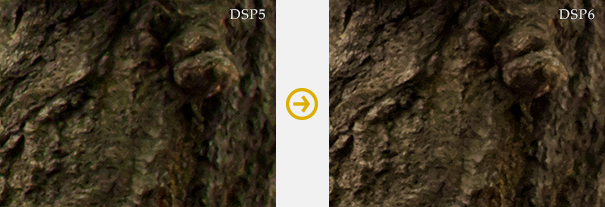 The example picture compares DSP5 and DSP6. Red and green color noise in the wide areas that remain in shadows are reduced.
Easing Brightness Noise
The performance in easing the roughness (brightness noise) in images generated through high sensitivity has improved compared to conventional noise reduction. Side effects such as photographs dimming have been suppressed when compared with the amount of noise as usual.
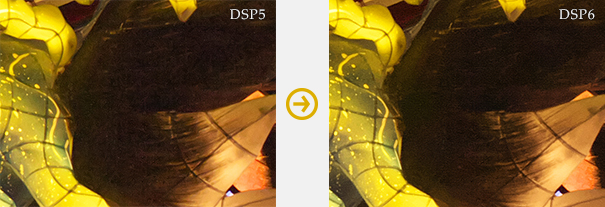 Brightness noise that could not be eliminated from parts with a strong noise level by DSP5 can be removed with DSP6. The following of a detail image is a comparison of monochrome that clearly shows the differences in brightness noise levels.
Improved Maintenance Level of Outlines during Noise Reduction
Blurs and waves in outlines are suppressed during noise reduction when compared with conventional items. Therefore, natural finishes are possible even with NR.
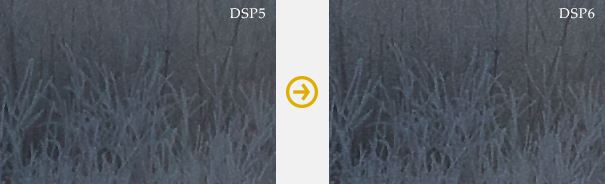 The sense of definition has been improved when comparing DSP5 with the same amount of noise. The difference in reproductions of outlines and details can be seen.
Adjusting Bright Sections and Dark Sections with Dodge Functions / HDR Functions
Dodge only (common to both Dodge / HDR)
You can automatically detect shadow areas and have their brightness reproduced by intensifying them. In addition, this can be applied only to shadow areas without influencing the brightness of highlighted areas.
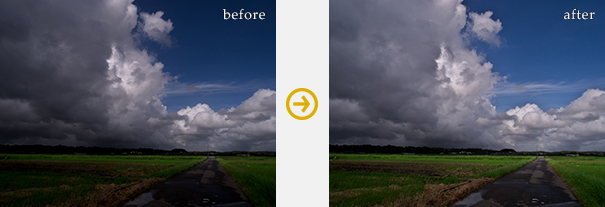 You can automatically detect only shadow areas and reproduce the natural brightness without changing the gradation of bright, cloudy areas.
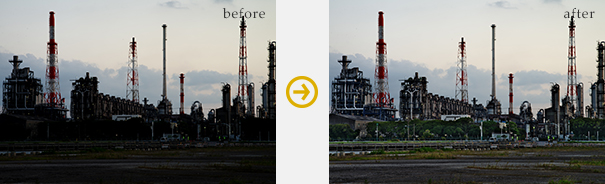 You can brighten and correct strong shadow areas. By independently correcting dark areas, you can apply this strongly to only shadow areas.
Color Burn only (common to both Dodge / HDR)
You can automatically detect and restore harmony to highlighted parts close to overexposure through desensitization. In addition, this can be applied only to highlighted areas without influencing the brightness of shadowed areas.
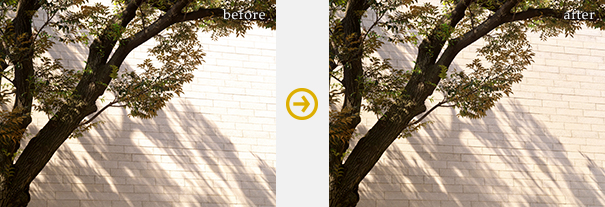 You can compress and reproduce the gradation of the black tree trunk area while keeping highlighted areas of the wall as is (without adjusting black levels).
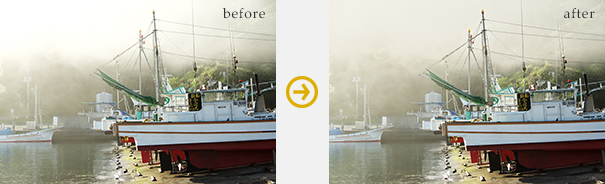 HDR color burn is darkening and reproducing only highlighted areas so that you can reproduce the gradation of overexposed areas.
Red Eye Correction
By using the Red Eye Correction Brush found in the Spotting Tools, it is possible to designate and correct areas of red eye from flashes.
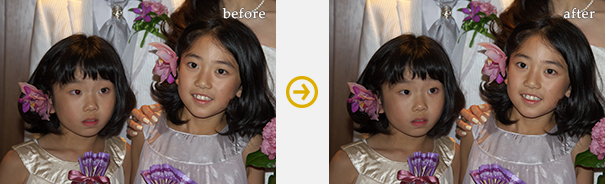 Even when red eye has appeared in photographs using clip on flashes and the like, you can designate and correct those areas.
Portrait Beautification
You can control details such as rough or layering skins, through the automatic search and smooth expression of areas close to skin tones. Natural, high resolution processing is possible in areas of skin tones and outlines near them. Sometimes reproductions of skin details in photography from the bust up are available in the latest high resolution devices. This is very useful in portrait photography.
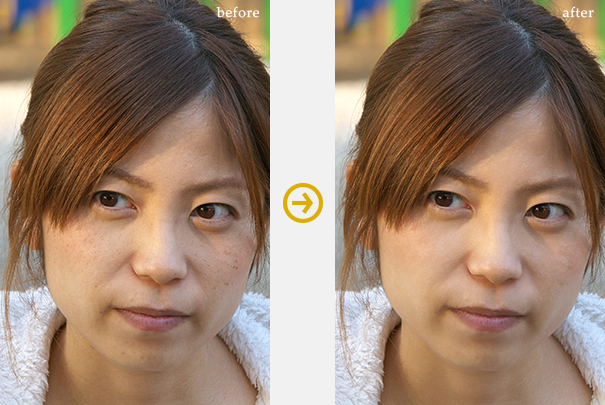 Improvements in resolution of digital cameras sometimes lead to finished photographs with good impressions from Portrait Beautification in close-up photography. Because you can make automatic adjustments with the slider to correct areas, you do not have to perform individual spotting for stains, freckles, layering, etc.
Add Noise
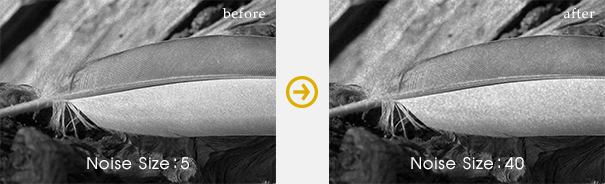
You can obtain effects that increase the emphasis and sharpness of details of the subject being photographed by adding grey scale noise to your photographs. This is not simply adding noise uniformly, but rather distinguishing the brightness in photographs and adding noise filters to applicable photographs changed automatically in quantities generating noise depending on the area. Therefore, you can use this as a film grain (granular feeling of the frame) emulation.
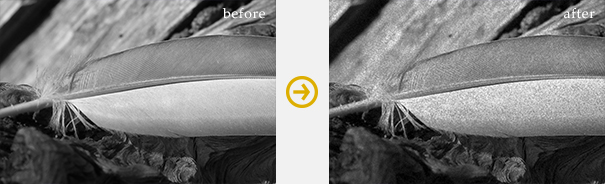 You can improve gradations and direct textures by adding noise in monochrome photography.
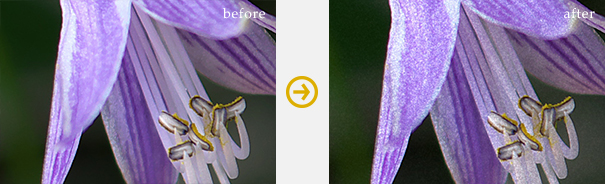 You can also finish with a feeling of film photography by adding grey scale noise in color photography as well.
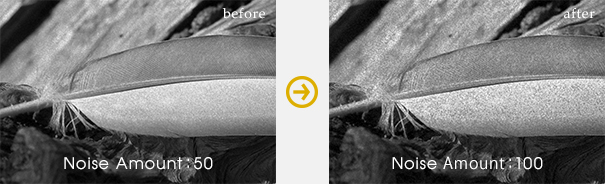
Noise amount
You can adjust intensity by adding grey scale noise. Setting to strong will add strong noise, bringing a high contrast in noise.
Noise size
You can adjust the size of grey scale noise. You can determine the size of noise depending on usage, based on the final print size by increasing or decreasing it.
Automatic Level Correction
This function automatically recognizes the photograph’s histogram and sets the level for shadowing and highlighting. It is a convenient function for when lighting conditions are weak (low contrast) and you want to set tones used to the maximum of RGB gradation. Sometimes a strong level correction raises the contrast, leading to a higher chroma. If this happens, use the chroma slider to lower the chroma.
 It is possible to finish using a maximum of gradation even in scenes with weak lighting conditions. You might want to make adjustments to input / output levels after basic automatic level corrections.
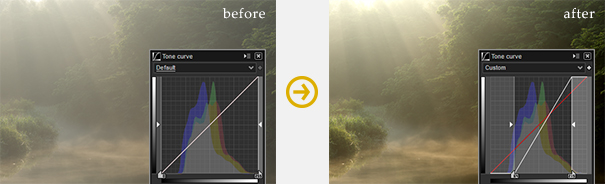 You can create lively, bright photographs by performing automatic level corrections even in photographs that appear sleepy under conditions of gentle light with little differences in brightness.
Unsharp mask during preview
Amount
You can now set the preview screen for unsharp mask as set for JPEG / TEFF output or printing in the past. You can set the strength of the sharpness.

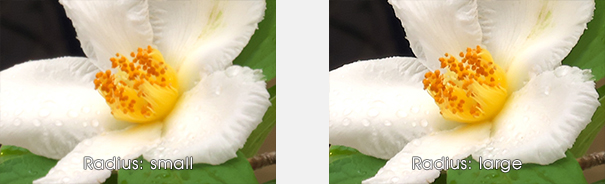
Radius
You can set the thickness of the outline that sharpness is applied to.
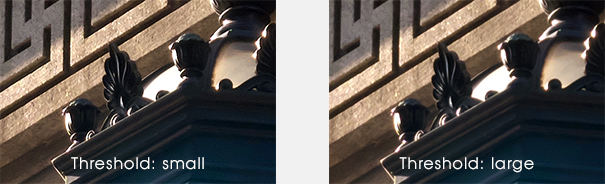
Threshold
You can set the definition to outlines that can be applied to sharpness. Sharpness can be applied to only outlines to a certain degree with a high setting.
Changes centered on shading
Shading Center
You can change the center of corrections to shading (peripheral dimming). This is especially effective when obtaining effects of dimming the four corners equally, even when trimming the photograph so that the center angle of view has been moved when the peripheral has been dimmed as an effect (when aiming for a tunneling effect).
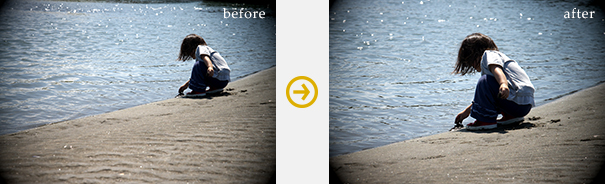 If you are aiming for peripheral dimming effects, this can be applied to dimming effects equally in the four corners, even when the center of the image has been moved.
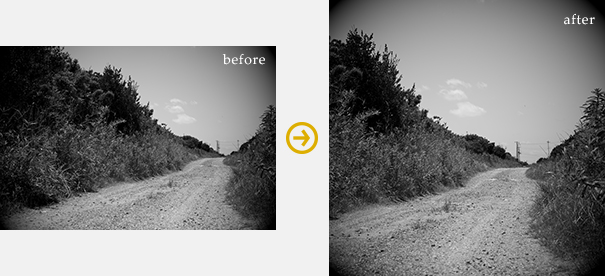 Dimming effects of shading can be applied to the four corners equally even when the center of the trimming is moved when changing the aspect ratio due to trimming as shown in 1:1.
Soft Proofing
You can confirm color tastes on the preview screen when printing by selecting the printer profile and “Printer + Paper.” It is possible to edit data for highly precise printing because you can confirm that there are no color shifts or eliminated (or added) dark areas when using fine art paper that is especially different from RGB characteristics. This function performs color management on the monitor, making it possible to proofread (simulate) to a high degree of reliability only in environments for reading the printing.
Print Profile
This displays a list of the print profiles installed on the computer you are using. You can select an ICC profile of “Printer + Paper” that you wish to simulate.
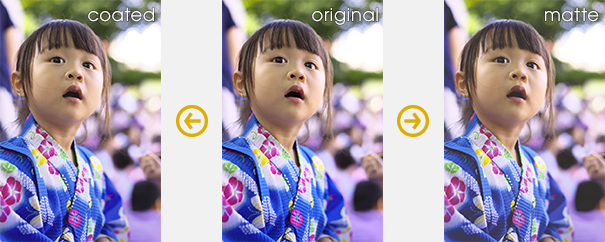
Matching Method
You can select a clipping process for areas outside the color region.
You can select from perceptual, chroma, maintaining relative color level, and maintaining absolute color level.

Hot Folder
This function allows you to view the designated folder and automatically read to SILKYPIX when data is added there.
Hot Folder Response
YWhen performing tethered photography such as with camera controls on your camera, it is possible to conjoin preview displays in real time by designating the folder to which it is to be saved. This function is mainly recommended for work in photo and portrait studios.
Applications of Default Parameters
Recorded parameters can be automatically affixed and displayed if data is added to the hot folder.

Improvement to set/clear Marks
It is possible to set marks (Develop marks, user marks, etc.) on the status bar.
Recorded parameters can be automatically affixed and displayed if data is added to the hot folder.
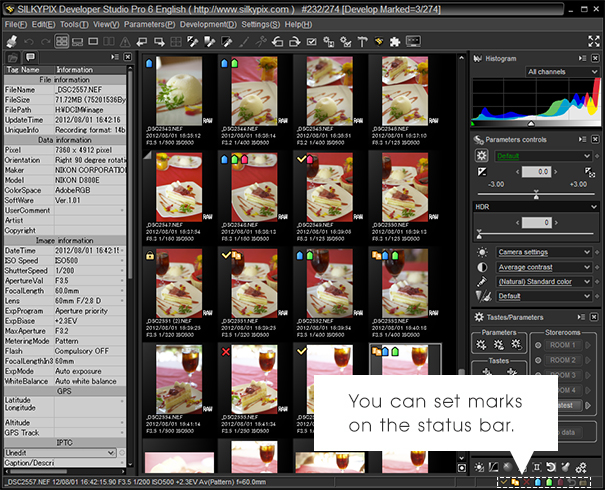
Thumbnail Response to Spoit Tools
You can assign selected tools to thumbnail images with spoit, such as exposure bias tool, gray balance tool and black level tool. As you can assign not only selected images, it is possible to apply an accurate white balance from gray chart images photographed from the same light source.
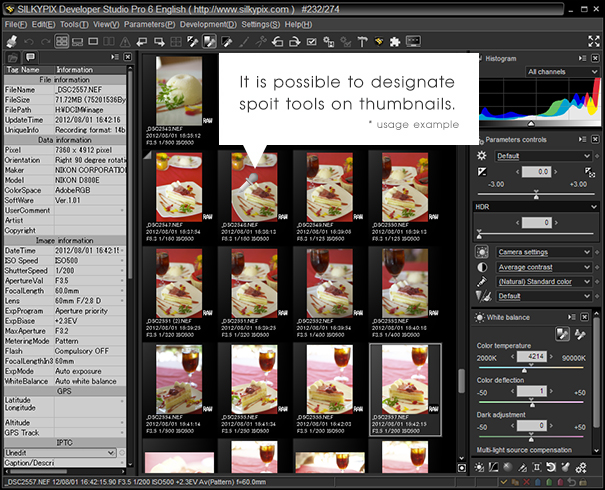
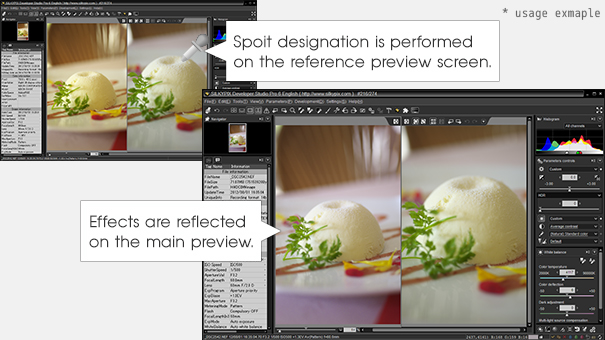 When viewing the reference preview in the multi preview, you can have the effects of the spoit tools designated on the reference preview screen reflected in the main preview.
Changing the way to apply development parameters in multiple images
Until now, you could apply only tastes when selecting multiple images. With DSP6, you can edit each adjustment even when multiple images are selected.
Navigator
You can confirm and operate in preview areas on special thumbnails. When the preview screen is magnified and displayed beyond the fitted display, you can display a guide on special thumbnails in a designated location on the preview screen. In addition, the guide can be scrolled through the preview screen by dragging the mouse.
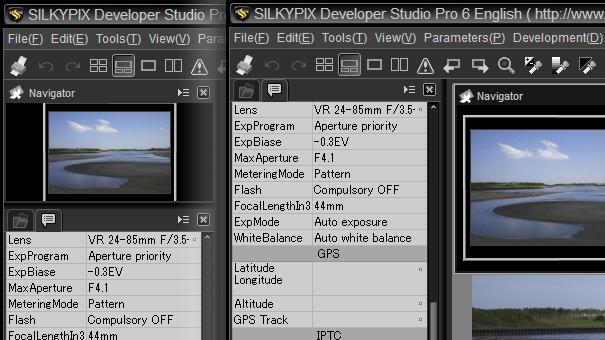 You can also separate the navigator as an independent floating window.
3 column layout for controls
It is possible to have three separate control layouts on the screen. You can efficiently use the size of the screen when using a wide LCD monitor or such. In addition, the control panel can be set to either the left or right side, so you can work in two columns the same way as in past versions by combining them into one.
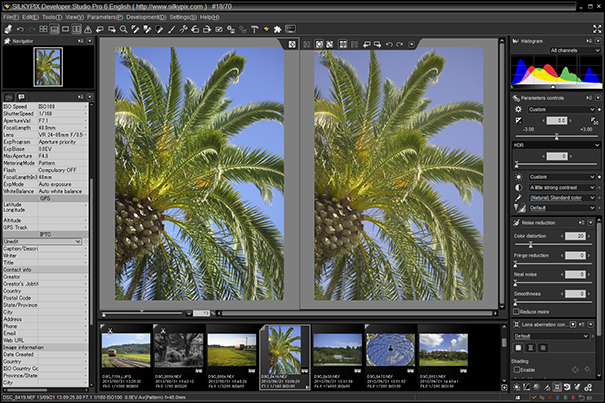
Full screen preview
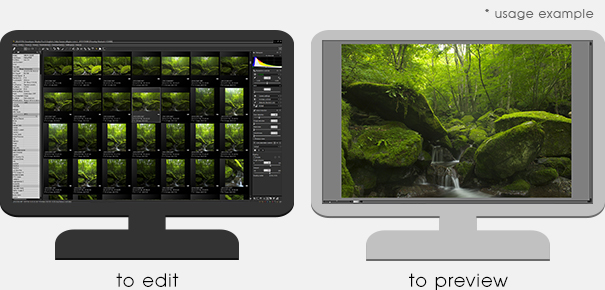
You can easily confirm the overall atmosphere of the photograph by showing the preview on the entire screen. In addition, if your environment uses multiple monitors, you can locate the controls and perform editing on the monitor while displaying the photograph on the full screen of another monitor.

DS PRO6 – in a Nutshell
Product: SilkyPix Developer Studio Pro6 – RAW converter, Version 6, last update
Description: SILKYPIX Developer Studio Pro6 is the latest version of the high end RAW converter that turns your RAW files into great images offering an easy to use set of tools for RAW developing
System requirements: Windows XP, Windows Vista, Windows 7, Windows 8, Mac OS X 10.5, Mac OS X 10.6, Mac OS X 10.7,Mac OS X 10.8,Mac OS X 10.9
Category:
Photo Editor, File size: 102 MB, Language: English , Installations: more than 400 downloads
What was new in Version 5?
HDR
Create HDR images using only a single image, instead of your camera´s auto bracketing feature. Our RAW converter uses the full potential of your RAW image data.
New AWB algorithm
One of the most important features of our RAW converter is now even better: the White balance tool. We now offer two different Auto White Balance algorithms that allow you perfect correction, even if there are multiple light sources.
Improved noise reduction
High shutter speeds in low light situations require excellent High ISO speed noise suppression. The SILKYPIX RAW converter comes with “NR3”, our powerful High-performance noise reduction. This function suppresses color noise in darker parts of your image.
Black level tool
Use our Black level tool to increase contrast, if shooting conditions led to low contrast pictures. This is mighty RAW converter feature provides very natural contrast improvements.

Improvements in color mode
Our RAW converter now comes with a new color mode function called “profile”. The all new “Faithful Mode” allows you to change contrast without changing saturation levels in colors.
Features
Basic functions
SILKYPIX is a RAW converter that is equipped with all necessary functions for basic and advanced RAW editing – Exposure bias / Dodging / White balance / Tone / Color / Sharpness / Noise Reduction
Dynamic Range
RAW data offers synamic range equal to film. With SILKYPIX RAW converter you can get the maximum dynamics out of your images – Smart dodging / Dynamic Range / Highlight Controller
Rotate and shift
Establish horizontal alignment and adjust the perspective with our RAW converter – Rotation / Digital Shift
White balance
No more optical color correction filters needed – our RAW converter supplies you with state of the art white balancing technology – WB Fine-tuning / Color Deflection

Display settings for maximum comfort
Personalize your display settings for your individual workflow needs – Multi-preview / Thumbnail placement setting
Dust removal
Sensor dust is a major problem for all photographers that use exchangable lenses. Our RAW converter has the perfect solution for you – Spotting tool
Usability
Batch development / Editing history / IPTC reading and editing / Supports embedded input color space of JPEG TIFF / Color Management for printing / Multi-core CPU support

